
Your tasks, the next event, a glance at the week. With Overview, nowfold’s customizable iPhone widget, you choose what gets a place on your Home Screen.
The setup has three parts: create and save a design in nowfold, add the large Overview widget to your iPhone, then choose your design in Edit Widget → Creation. You can return to that menu whenever you want to switch to another saved version.
1. Create your widget in nowfold
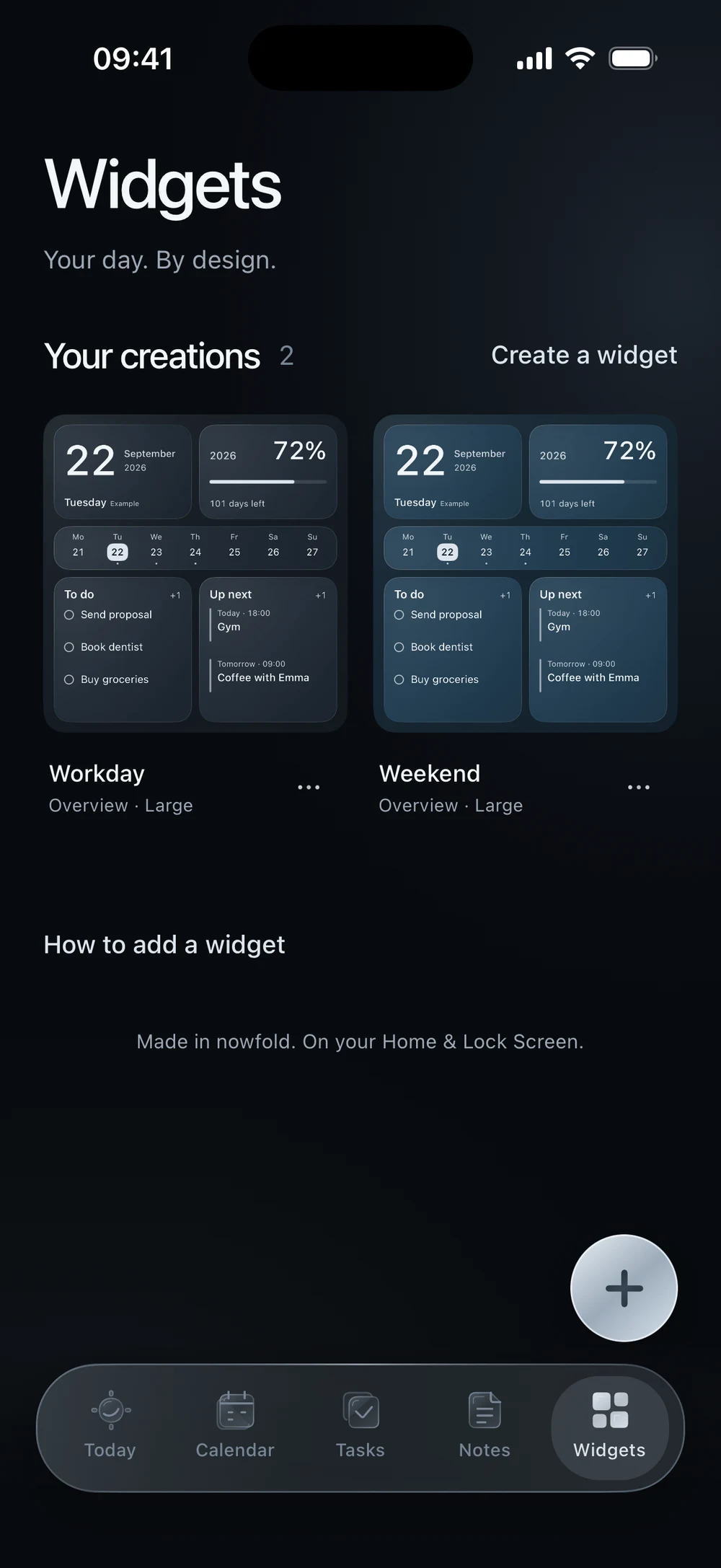
Open nowfold and go to the Widgets tab. This is where your saved Overview creations live. Each creation has its own name, arrangement and appearance, so you can keep a few different versions ready.
Start with a layout
Tap Create a widget to open the Widget studio with the starting Overview layout. If this is your first creation and you’d prefer an empty layout, choose Start with a blank canvas instead.
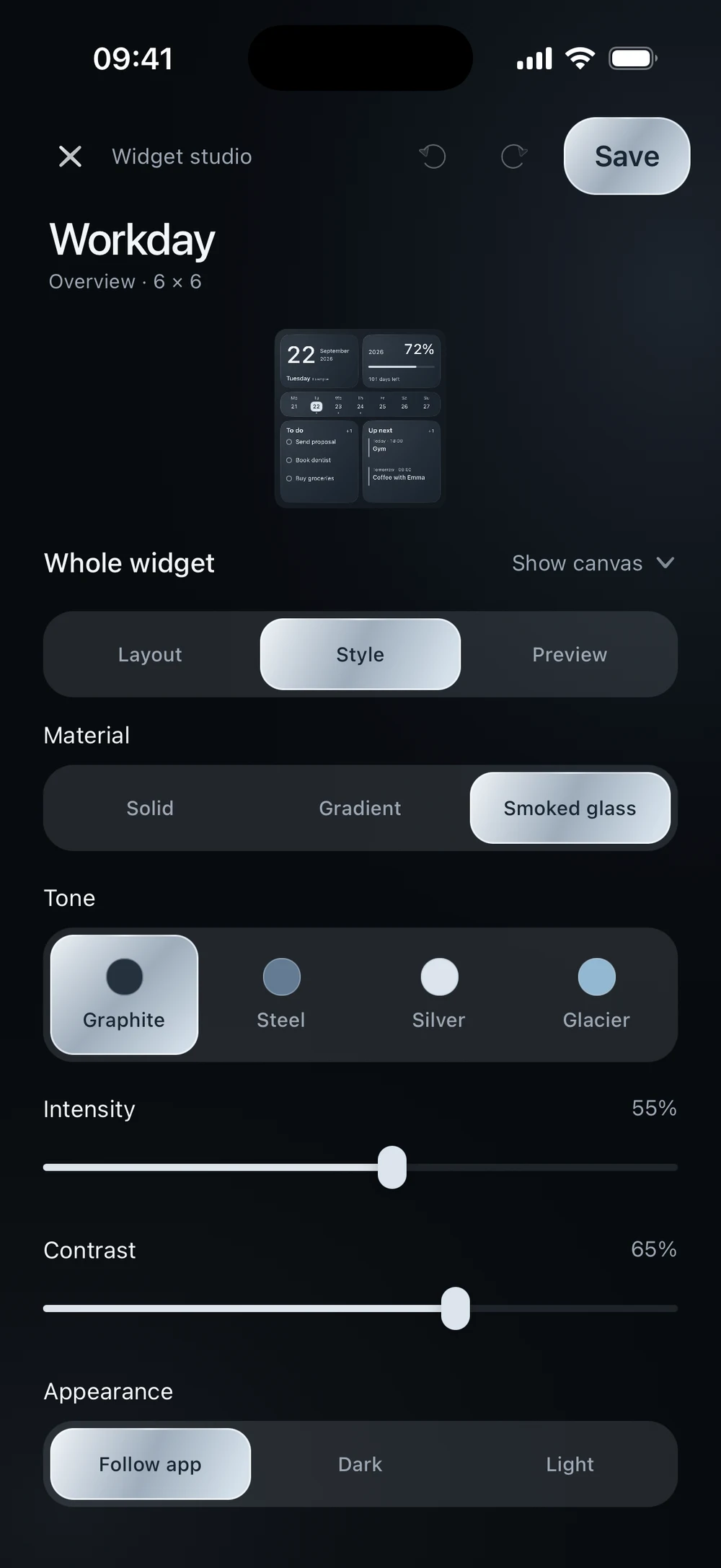
Give your creation a recognizable name at the top of the editor. Something like “Workday” or “Weekend” makes it easy to find later in the iPhone widget settings.
Choose what belongs in it
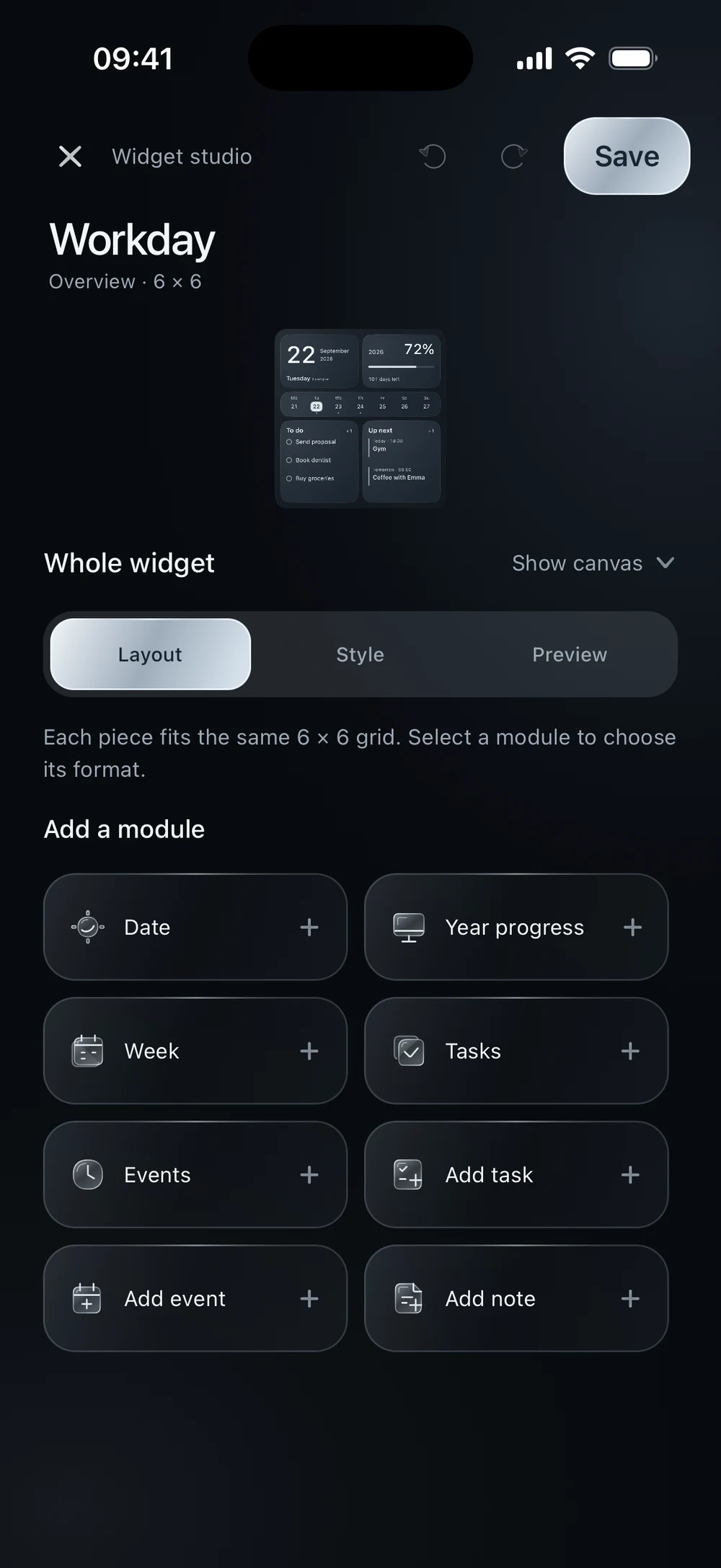
The Layout panel lets you add and arrange the pieces of your day:
- Date for the current day.
- Year Progress for a little perspective on the year.
- Week for a compact view of the week.
- Tasks for the things you need to do.
- Events for upcoming calendar events.
- Add task, Add event and Add note for shortcuts into nowfold.
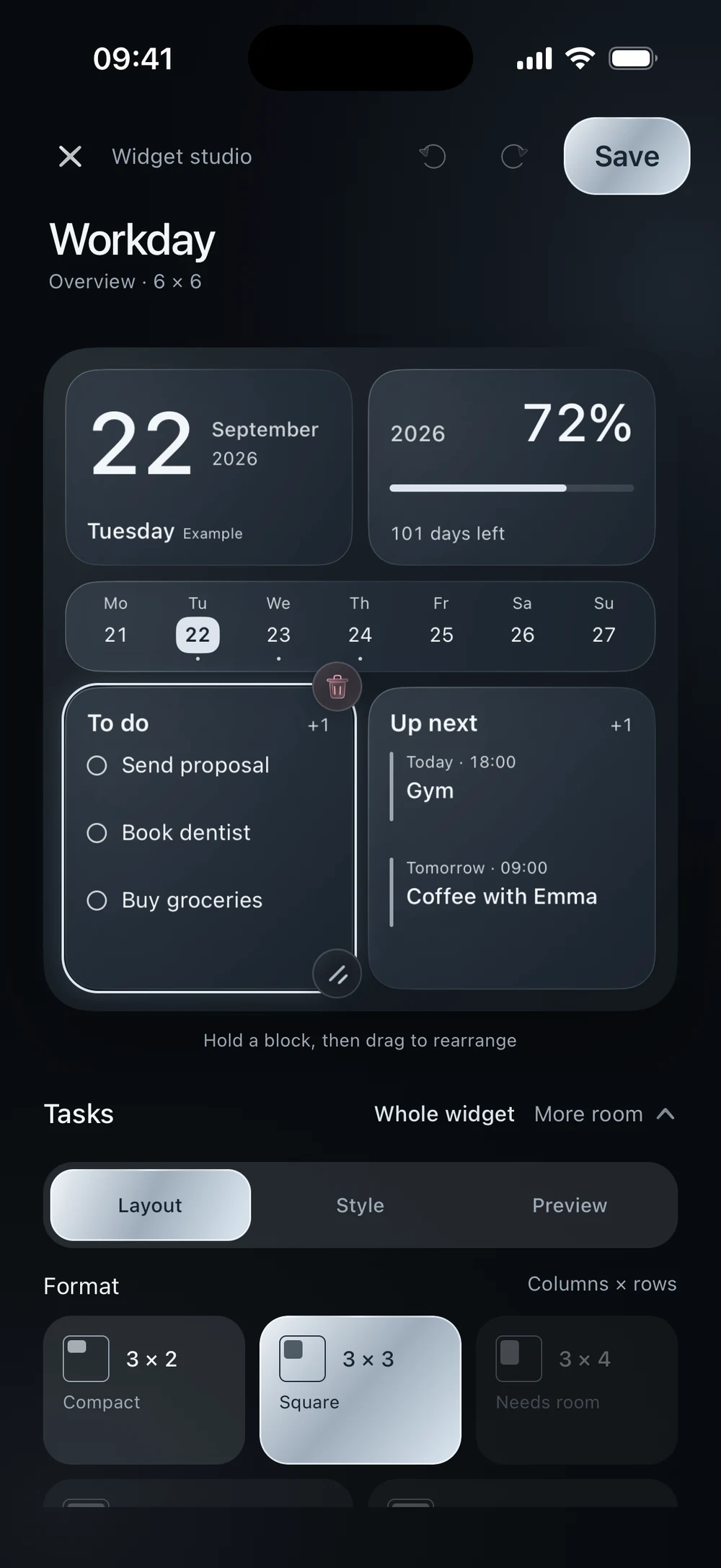
Touch and hold a block to move it. Select a block to choose one of its available sizes in Layout. The blocks fit onto a grid; if a larger block won’t fit, make room by moving, shrinking or removing another one. The small bin on a selected block removes it, and Undo brings it back.
For a first layout, try giving Tasks and Events most of the space and keeping Date and Year Progress smaller. You can change the balance after using it for a day or two.
Make it feel like yours
Open Style to adjust the material, color and appearance. The current materials are Solid, Gradient and Smoked glass, with Graphite, Steel, Silver and Glacier finishes.
With a block selected, style changes apply to that block. Choose Whole widget to adjust the shared look. If you need more space for the controls, tap More room; Show canvas brings the full layout back.
Preview, then save
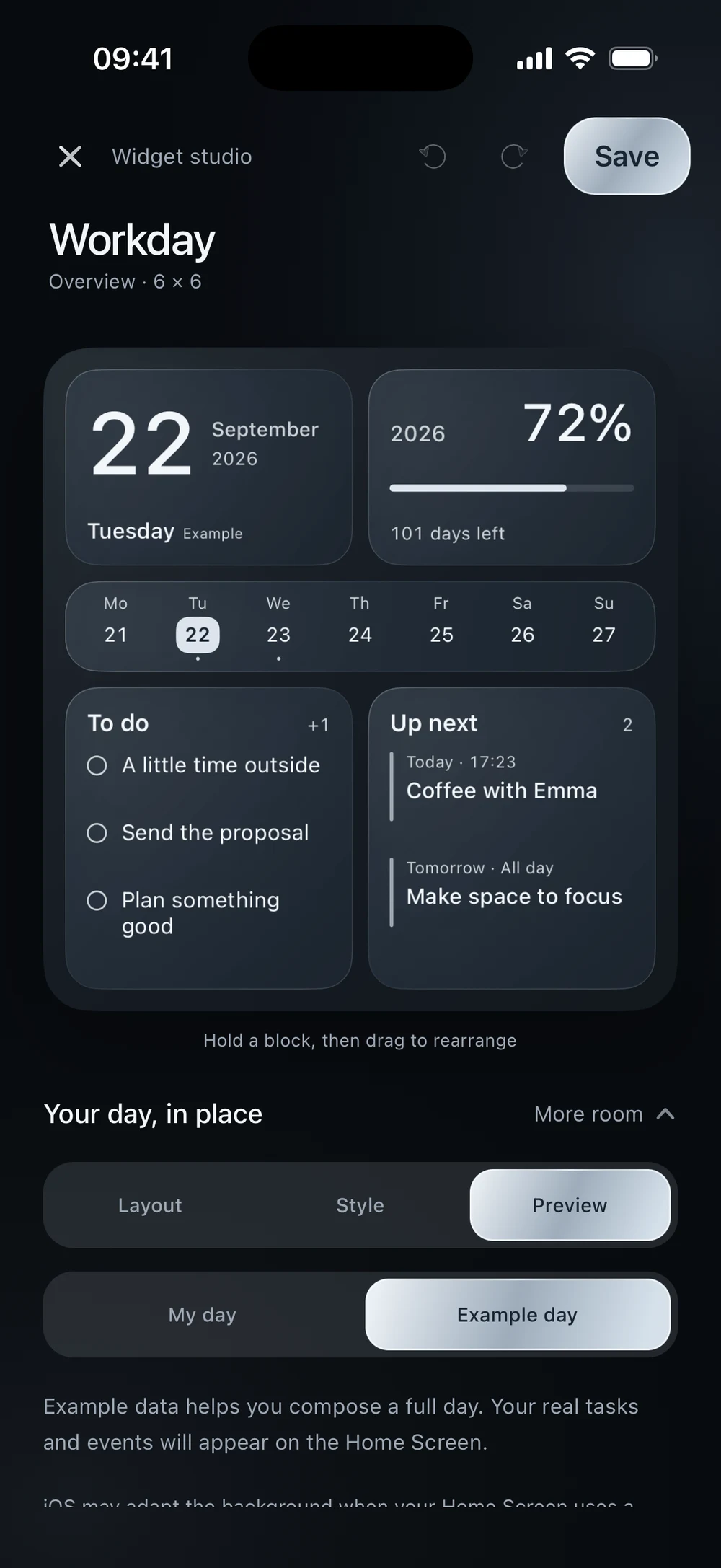
In Preview, choose My day to see your own content or Example day to try a filled-out sample. Example data only changes the preview; it doesn’t add tasks or events to your day.
Tap Save when you’re happy with the result. Your named creation appears in the Widgets gallery. Saving makes it available to iOS, but you still need to add Overview to your Home Screen and select it.
2. Add Overview to your Home Screen
Once your creation is saved, head to the iPhone Home Screen page where you want it:
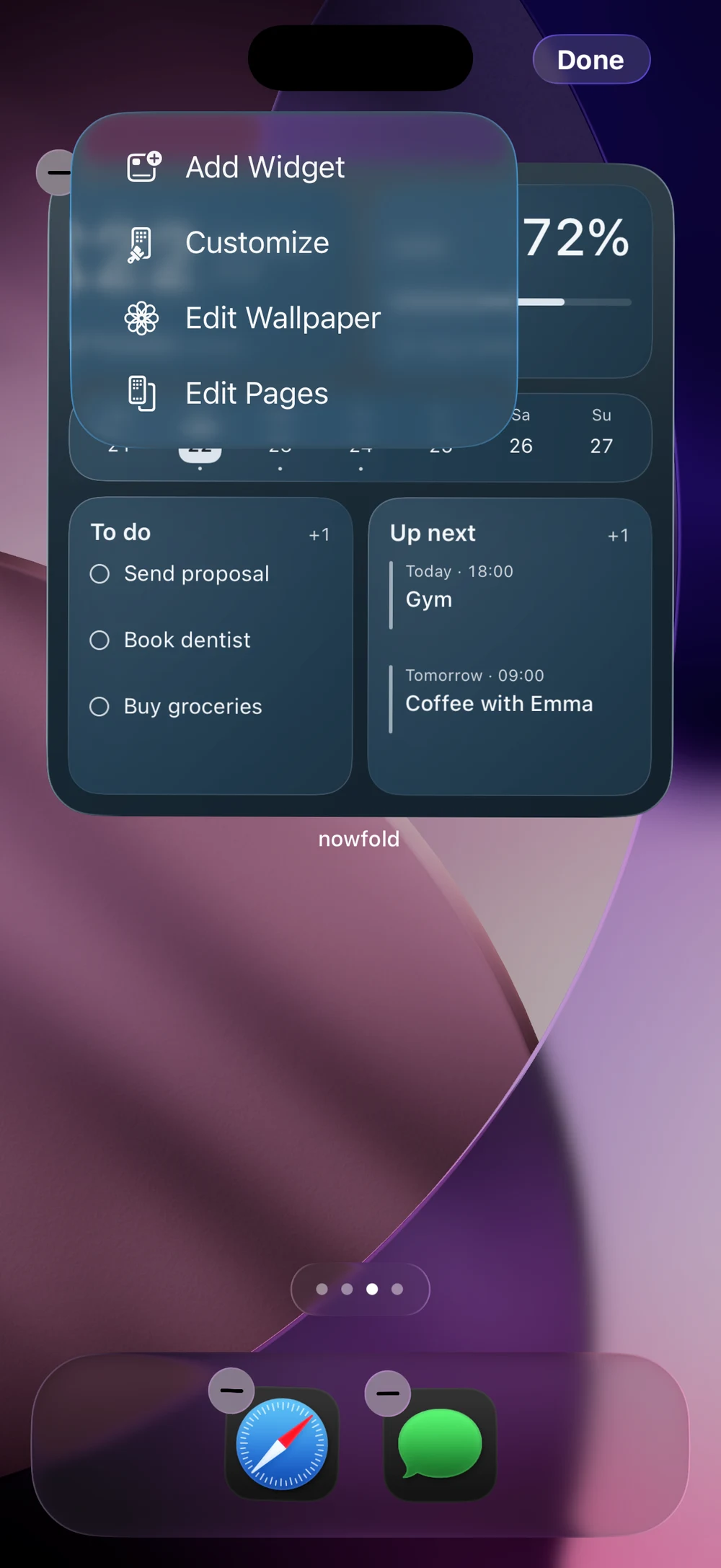
- Hold an empty area to enter Home Screen editing.
- Open Edit → Add Widget, then search for nowfold.
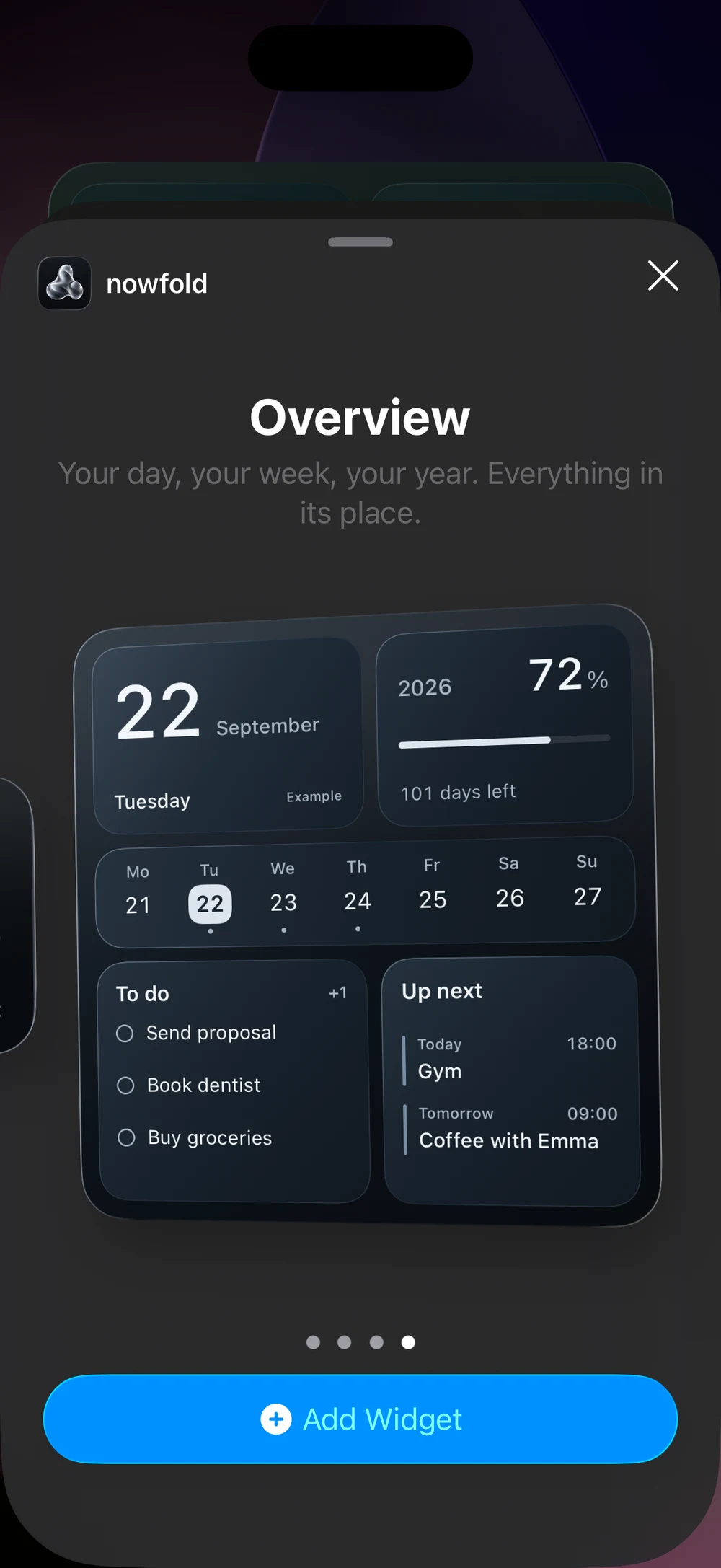
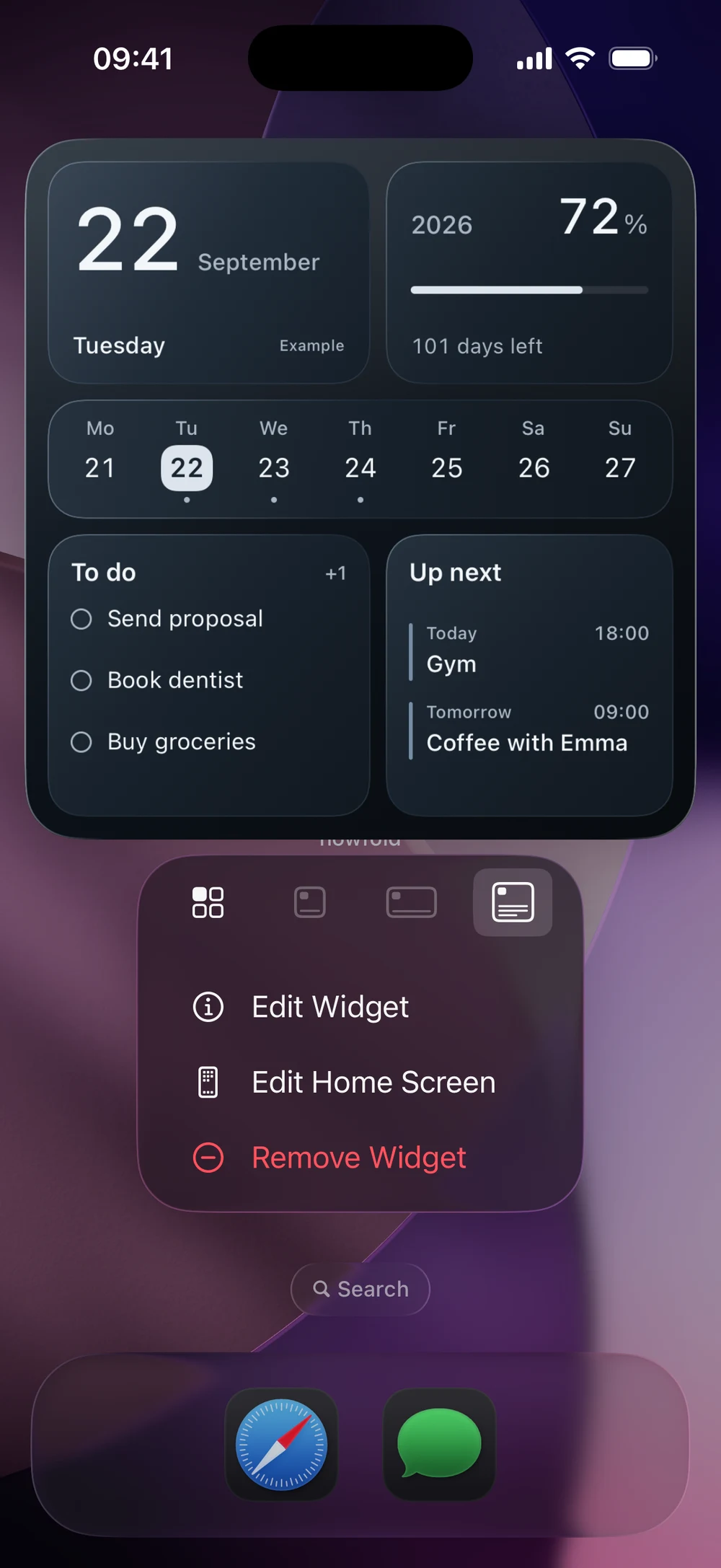
- Find Overview, the large widget, and tap Add Widget.
- Place it where you want it and finish with Done.
Choose Overview for your custom creation. Today and Year Progress are separate widgets with their own layouts; they don’t use the designs you make in the Widget studio.
Connect it to your saved creation
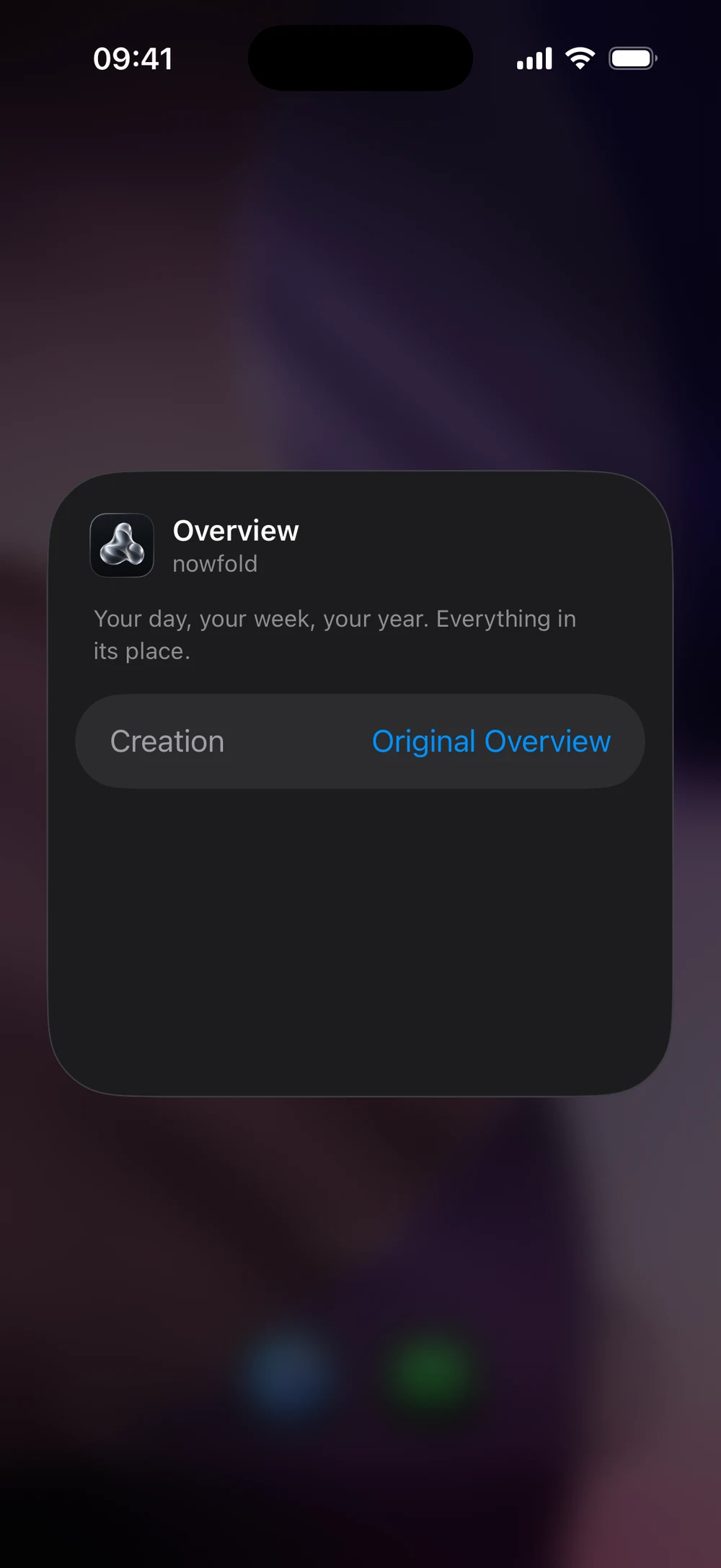
The newly added widget may show Original Overview, the built-in layout. To display the one you made:
- Hold the Overview widget and choose Edit Widget.
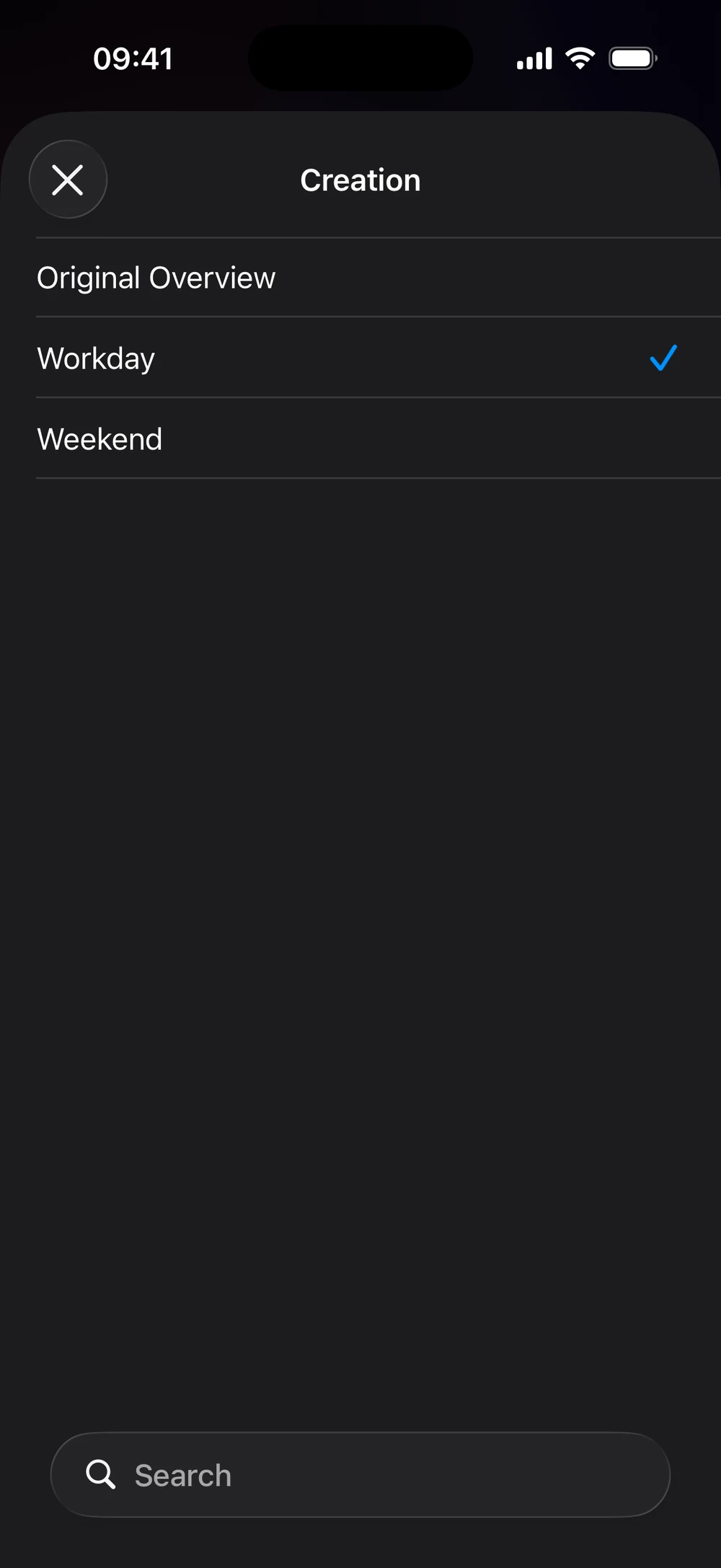
- Open Creation and select your saved name, such as “Workday.”
- Tap outside the settings to return to your Home Screen.
Your installed Overview now references that creation. Later, if you edit the same creation in nowfold and tap Save, the installed widget picks up the changes when iOS refreshes it.
3. Switch between your saved widgets
Make a second creation in the Widgets tab, give it a different name and save it. You can also open the options next to an existing creation and choose Duplicate to start with a copy, then open that copy to rename and customize it.
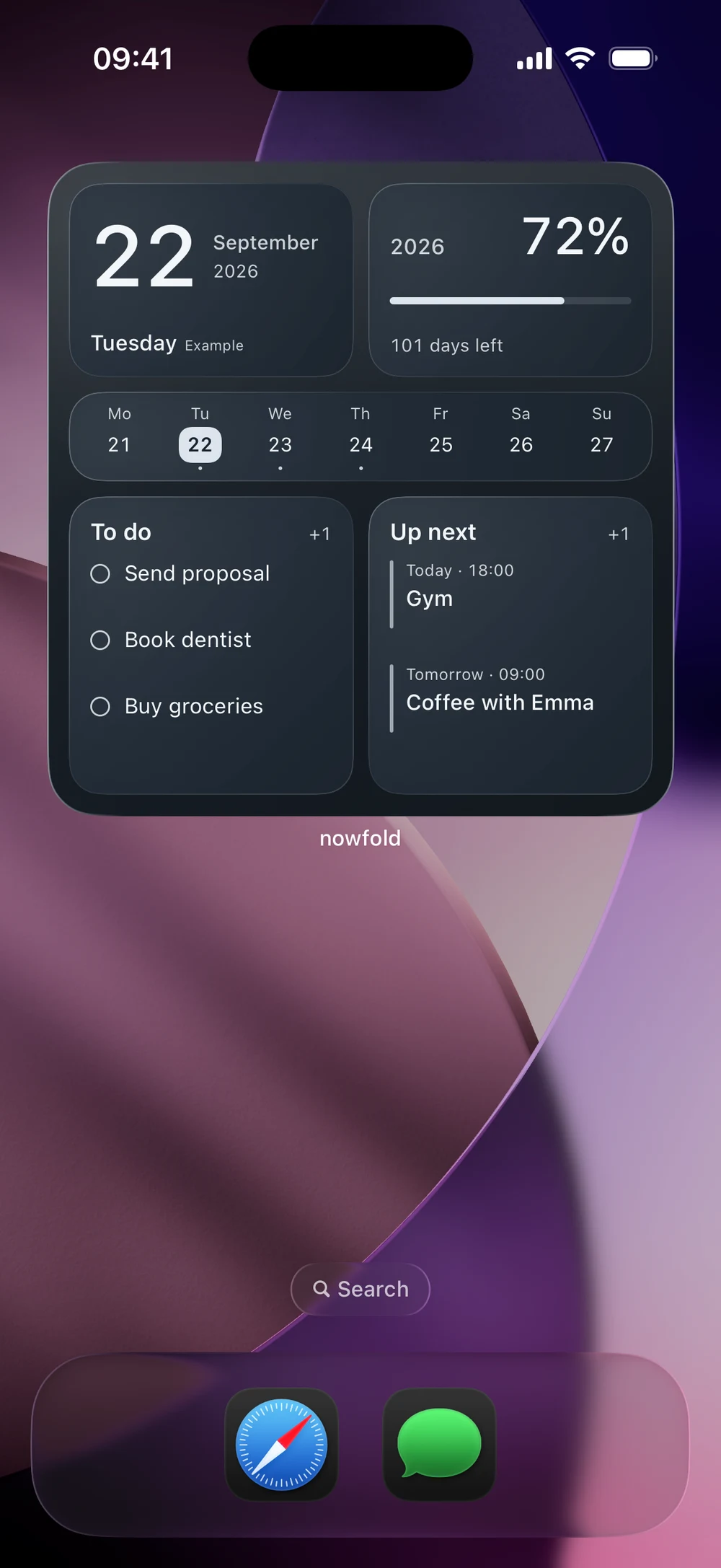
For example, “Workday” could give more room to tasks and events, while “Weekend” could leave more space for the date and week. These names describe layouts you make; they aren’t separate calendars or task lists.
To switch an installed widget, open its Edit Widget menu again and change Creation to the saved design you want. You can do this directly from the Home Screen, without rebuilding or removing the widget. The other creations stay saved in nowfold.
Here, both creations use the same arrangement: Workday has a Graphite finish, and Weekend uses Glacier. Switching Creation changes the appearance while keeping the same example tasks and events.
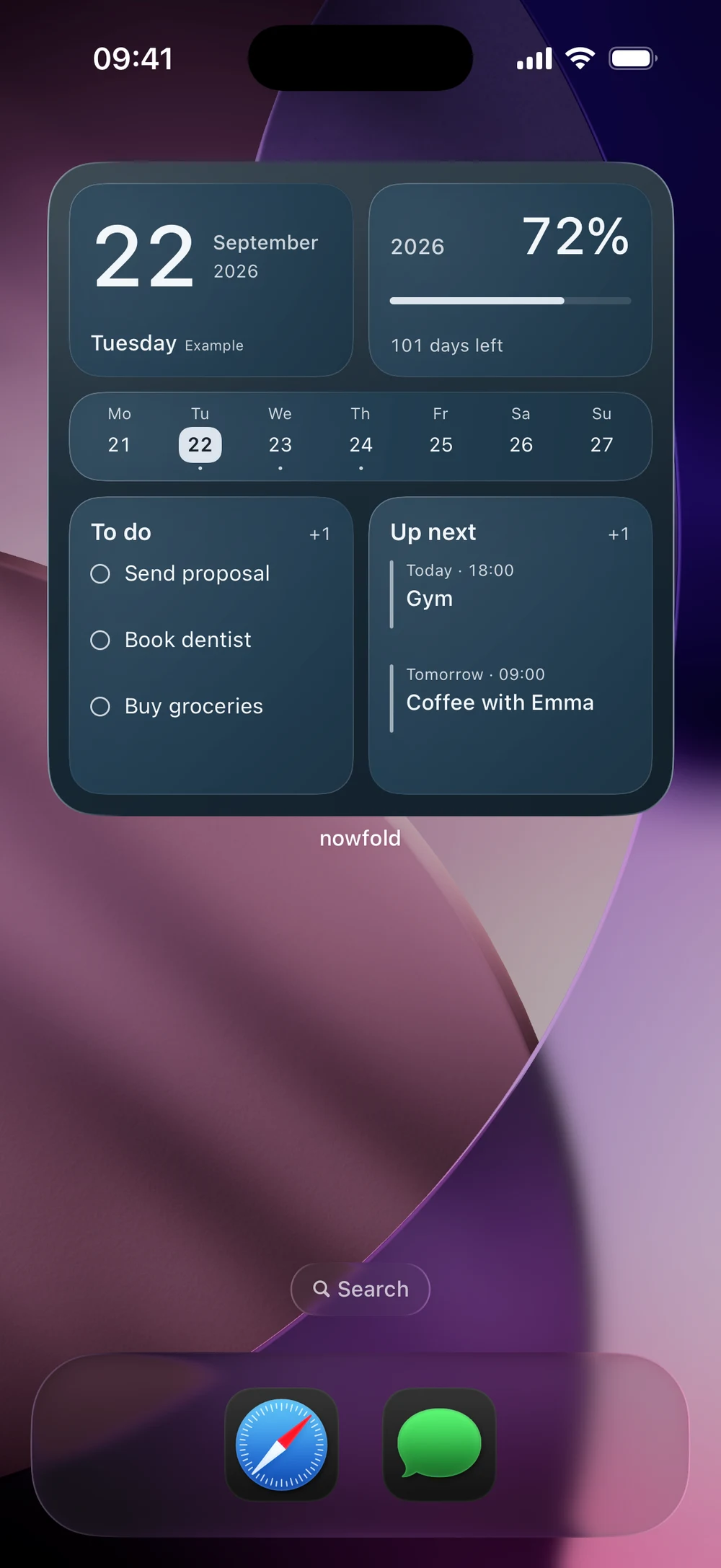
Keep more than one layout on your Home Screen
You can add several Overview widgets and choose a different Creation for each one. A task-focused widget on one page and a more balanced overview on another can share the same underlying day, with different amounts of space for each part.
Prefer to swipe between them?
An iOS widget stack can hold multiple Overview widgets in the same space. Add and configure two large Overview widgets, then enter Home Screen editing and drag one onto the other. Swipe vertically through the stack to change the visible widget. Edit Stack lets you turn off Smart Rotate if you prefer to choose manually.
The Home Screen and stack gestures follow Apple’s guide to adding and editing iPhone widgets. iOS labels can vary with your system language and version.
A few useful answers
Why can’t I see my creation in the picker?
Check that you tapped Save in the Widget studio and that your creation appears in the Widgets gallery. Then check that the installed widget is Overview. Open nowfold once more, return to the Home Screen and reopen Edit Widget to check the list again. If it’s still missing, contact nowfold support.
Do I have to add the widget again after editing it?
No. If you change an existing creation and save it, Overview widgets using that creation keep their connection to it. Renaming it also keeps that connection. A duplicate is a separate creation, so select the duplicate in Creation if you want to use that version instead.
What happens if I delete a creation?
An Overview using that creation will ask you to choose another one. It won’t silently switch to a different design. Open Edit Widget and pick a saved creation or Original Overview.
Can I check off tasks in the widget?
Yes. Today and Overview support task completion from the installed Home Screen widget. Tapping an event opens its details in nowfold. The previews inside the Widget studio don’t change your tasks.
Does each creation have its own tasks and events?
Creations change the arrangement and style of the widget. They use the same day’s data from nowfold, including the calendars you’ve selected in the app. Changing from “Workday” to “Weekend” changes how you see your day.